


Last Update on December 27, 2025
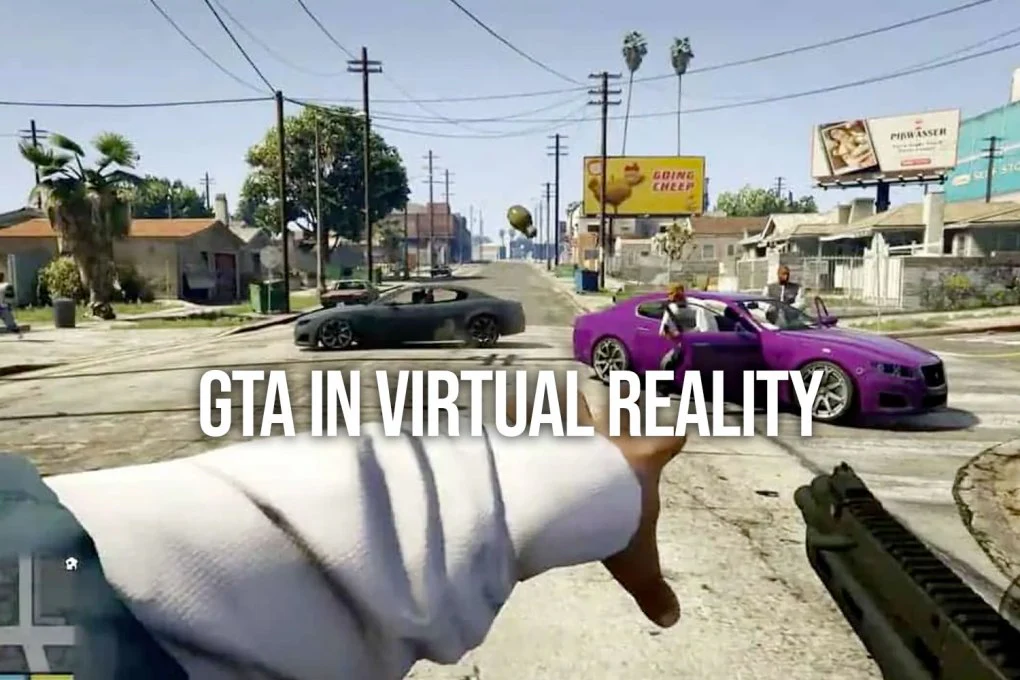
Grand Theft Auto V remains one of the most popular games in gaming history, and in 2025, the experience reaches new heights thanks to virtual reality. Although Rockstar Games has never offered official VR support, the modding community has created exceptional solutions to transform Los Santos into a breathtakingly immersive experience.
This comprehensive guide takes you step-by-step through the installation of the LukeRoss R.E.A.L. mod, compatible with the latest headsets like the Meta Quest 3 and PCVR setups. You will discover optimal configurations, graphical settings to maximize your FPS, and solutions to common problems encountered in 2025.
⚠️ IMPORTANT WARNING: NEVER use VR mods in GTA Online. This will result in a permanent ban of your Rockstar account. This guide is exclusively for GTA 5 Story Mode.
System and Hardware Requirements for GTA 5 VR in 2025
Playing GTA 5 in virtual reality requires a more powerful hardware configuration than a standard gaming session. Performance must reach a minimum of 72 to 90 constant FPS to avoid motion sickness and ensure optimal immersion.
Compatible VR Headsets in 2025
The choice of headset directly influences the quality of your experience. Here are the models tested and recommended this year:
- Meta Quest 3 – The best value for wireless PCVR via Air Link or Virtual Desktop
- Meta Quest Pro – Excellent for prolonged comfort with its balanced design
- Bigscreen Beyond – The most compact and lightweight headset for long sessions
- Valve Index – The benchmark for field of view and 144Hz refresh rate
- HTC Vive / Vive Pro 2 – Excellent tracking precision
- Pico 4 – An affordable alternative with PCVR streaming
For Quest 3 users, the connection to the PC can be made via USB-C cable (Oculus Link) for minimal latency, or via Wi-Fi using Air Link or Virtual Desktop if you have a Wi-Fi 6/6E router.
Recommended PC Configuration 2025
Requirements have evolved with new GPUs and higher resolution expectations. Here are the tested configurations:
Minimum Configuration (1080p per eye, Medium)
- Processor: Intel Core i5-12400 / AMD Ryzen 5 5600X
- Graphics Card: NVIDIA RTX 3070 / AMD RX 6800
- RAM: 16 GB DDR4
- Storage: NVMe SSD (3x faster loading)
- OS: Windows 11
Optimal Configuration (1440p per eye, High/Ultra)
- Processor: Intel Core i7-13700K / AMD Ryzen 7 7800X3D
- Graphics Card: NVIDIA RTX 4080 / RTX 4090
- RAM: 32 GB DDR5
- Storage: Gen4 NVMe SSD
2025 GPU Benchmarks for GTA 5 VR
Here is the average performance observed with the R.E.A.L. mod in 2025:
- RTX 4090: Stable 90 FPS on Ultra (Quest 3 native resolution)
- RTX 4080: 80-90 FPS on High, 72 FPS on Ultra
- RTX 4070 Ti Super: Stable 72 FPS on High
- RTX 3080: 60-72 FPS on Medium-High
- RTX 5090 (New): Preliminary tests show 90 FPS on Ultra with partial ray tracing
Downloading and Installing the LukeRoss R.E.A.L. Mod
The R.E.A.L. (Real Engine for All Locomotion) mod developed by Luke Ross completely transforms GTA 5 into a native VR experience. Unlike solutions like VorpX that simulate 3D, R.E.A.L. offers true stereoscopy and authentic first-person interaction.
Step 1: Prepare a Clean GTA 5 Installation
First and foremost, ensure you have a stable and unmodded version of the game:
- Uninstall old mods if you had any. A clean install avoids 90% of compatibility issues.
- Launch GTA 5 for the first time without any mods to generate the necessary configuration files.
- Update the game to the latest version via Steam, Epic Games, or the Rockstar Launcher.
- Note the exact location of the installation folder (usually
C:\Program Files\Rockstar Games\Grand Theft Auto V).
Step 2: Download the R.E.A.L. VR Mod
The mod is available on Luke Ross’s Patreon. A monthly contribution provides access to the latest versions and technical support:
- Go to the official LukeRoss Patreon
- Choose the appropriate tier (the base tier is sufficient for GTA 5)
- Download the latest version of the R.E.A.L. mod for GTA 5 (version 2025.1 or higher)
- Also download the pre-optimized configuration files if available
Step 3: Install Script Hook V (2025 Update)
Script Hook V is essential for running mods in GTA 5. In 2025, ensure you have the version compatible with the latest game updates:
- Download Script Hook V from its official site (dev-c.com)
- Extract the
ScriptHookV.dllanddinput8.dllfiles from thebinfolder - Copy these files into the main GTA 5 directory (where GTA5.exe is located)
- Verify that the version matches the installed game version
2025 Tip: If the Rockstar Launcher forces an update that breaks Script Hook V, wait 24-48 hours for the community to publish a compatible version before playing.
Step 4: Installing the R.E.A.L. Mod
- Extract the archive of the downloaded R.E.A.L. mod
- Copy all files into the main GTA 5 folder
- Run RealConfig.bat as an administrator for automatic configuration
- Open RealVR.ini to customize settings according to your headset
Is the GTA 5 VR Mod Free in 2025?
The LukeRoss R.E.A.L. mod requires a Patreon subscription (approx. $10/month). This is the price for an actively maintained mod compatible with the latest game versions. Free alternatives exist (like old VorpX mods) but offer a significantly inferior experience.
Optimal Configuration: Graphics and FPS

Optimizing graphical settings is crucial for a smooth VR experience. An unstable framerate immediately causes nausea, even for experienced players.
Recommended In-Game Graphical Settings
Access settings from the GTA 5 pause menu and apply these adjustments:
- FXAA: Off (use the headset’s anti-aliasing)
- MSAA: Off (too demanding in VR)
- Texture Quality: Very High (little impact on FPS)
- Shader Quality: High
- Shadow Quality: Normal (shadows are very costly)
- Reflection Quality: Normal
- Water Quality: Normal
- Particles Quality: Normal
- Grass Quality: Normal
- Post-FX: Normal
- View Distance: 50-70%
- VSync: Off (the VR runtime handles synchronization)
Optimization via OpenXR Toolkit in 2025
OpenXR Toolkit is a free tool that significantly improves performance and visual quality in VR games. Here is how to use it with GTA 5:
- Download and install OpenXR Toolkit from the official GitHub
- Launch GTA 5 in VR then press
Ctrl+F1to open the menu - Enable Fixed Foveated Rendering (FFR) on Medium or High
- Set the Render Scale between 80-100% depending on your GPU
- Enable Motion Reprojection if your FPS is unstable
These optimizations can increase your FPS by 20-30% without noticeable visual loss in the center of the image.
AER (Alternate Eye Rendering) Configuration
The R.E.A.L. mod uses a technique called AER that alternates rendering between the two eyes to double performance. In RealVR.ini:
- AER = 1: Enabled (recommended for mid-range GPUs)
- AER = 0: Disabled (for RTX 4080/4090)
What Graphics Card is Needed for Stable GTA 5 VR?
For a truly stable experience at 72+ FPS in 2025, an RTX 4070 Ti or higher is recommended. RTX 3000 cards remain usable but will require significant graphical compromises. The new RTX 5080/5090 offer the best performance thanks to their VR-optimized architecture.
Controls and Immersion: Gamepad vs Steering Wheel
Since GTA 5 was not designed for VR, motion controllers are not natively supported. However, several options are available for an immersive experience.
Xbox/PlayStation Controller (Recommended)
The controller remains the most comfortable way to play GTA 5 in VR:
- All controls are natural and responsive
- Driving is smooth and precise
- On-foot combat works correctly with aim assist
- Perfect compatibility with the R.E.A.L. mod
Force Feedback Steering Wheel (Maximum Immersion)
For driving enthusiasts, a Force Feedback compatible steering wheel transforms the experience:
- Logitech G29/G923: Excellent value for money
- Thrustmaster T300 RS: More precise force feedback
- Fanatec CSL DD: For simulation enthusiasts
Recommended GTA 5 configuration for the steering wheel:
- Enable “Steering Wheel” mode in the control settings
- Set steering sensitivity between 50-70%
- Disable driving assists for a realistic feel
- Adjust Force Feedback in the wheel software (50-70% recommended)
Keyboard + Mouse
Usable but less comfortable in VR. The mouse can be used for aiming, but spatial disorientation makes this option less intuitive than a controller.
Troubleshooting: Crashes, ScriptHookV, and Rockstar Updates
Even with a careful installation, problems can occur. Here are solutions to the most frequent issues encountered in 2025.
The Game Crashes at Launch
- Check Script Hook V compatibility: After every GTA 5 update, Script Hook V must be updated
- Run in administrator mode: Right-click GTA5.exe → Run as administrator
- Temporarily disable antivirus: Some antivirus software blocks mod .dll files
- Verify file integrity via Steam or the Rockstar Launcher
Conflicts with the Rockstar Games Launcher 2025
The Rockstar Launcher may force updates that break mod compatibility. Solutions:
- Offline Mode: Launch the launcher, disconnect the internet, then launch the game
- Block Updates: Temporarily rename the update folder
- Steam/Epic Version: These versions offer more control over updates
VR Does Not Activate
- Check that SteamVR or Oculus is launched BEFORE GTA 5
- Confirm your headset is detected (green light in SteamVR)
- Relaunch the RealConfig.bat file
- Try deleting the mod’s settings file and reconfiguring
Blurry or Stuttering Image
- Enable motion reprojection in SteamVR or Oculus
- Reduce render resolution to 80% in OpenXR Toolkit
- Close background applications (browsers, Discord video, etc.)
- Check GPU temperatures: Thermal throttling causes stuttering
Motion Sickness (Nausea)
Motion sickness is common for VR beginners. Tips:
- Start with 15-20 minute sessions
- Avoid sudden camera movements
- Play mainly in vehicles at first (less destabilizing)
- Enable vignetting in the mod options if available
- Keep a fan pointed at you to reduce nausea
Can You Play GTA Online in VR Without Being Banned?
NO, absolutely not. Rockstar uses an anti-cheat system that detects any modification to game files. Playing online with mods, even the VR mod, results in a permanent ban. Limit yourself exclusively to Story Mode.
Visual Comparison: GTA 5 Vanilla vs VR with Shaders 2025
The VR experience can be further enhanced with modern shaders. Here is what you can expect:
Without Shaders (Base Configuration)
- Graphics faithful to the original game
- Best performance
- Recommended for mid-range setups
With NaturalVision Evolved or Similar
- Photorealistic lighting
- Improved textures
- More immersive atmosphere
- Requires RTX 4080+ for 72 FPS
For high-end setups, adding shaders like NaturalVision transforms Los Santos into a photorealistic city. However, the performance impact is significant (20-40% FPS loss).
Conclusion and Additional Resources
Playing GTA 5 in virtual reality in 2025 represents one of the most immersive experiences available for this cult game. Thanks to the constantly updated LukeRoss R.E.A.L. mod, Los Santos comes to life like never before.
Keys to a successful experience:
- A sufficiently powerful PC (RTX 4070 Ti minimum recommended)
- A clean and methodical installation
- Optimized graphical settings via OpenXR Toolkit
- Strict adherence to Story Mode only
If you enjoy this experience, know that other AAA games benefit from similar VR mods. Check out our guide to the best VR mods of 2025 for other titles like Cyberpunk 2077 or Red Dead Redemption 2.
Feel free to share your setups and tips in the comments. The VR community is always ready to help new players optimize their experience in the streets of Los Santos!









Gta 5 v gama